EC2 Instance Profiles in AWS
A Complete Guide to Managing IAM Roles for EC2 Instances
What is an Instance Profile?
An Instance Profile is a container for an IAM role that you can use to pass role information to an EC2 instance when the instance starts. It serves as a vehicle to deliver temporary, automatically-rotating credentials to applications running on EC2 instances.
Key Characteristics
- Acts as a container for a single IAM role
- Provides temporary credentials to applications on EC2
- Eliminates the need to store AWS credentials in instance
- Credentials automatically rotate
- Can be attached at launch or to running instances
How Instance Profiles Work
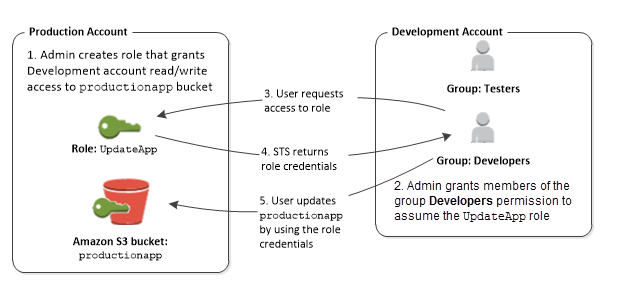
Execution Flow
- EC2 instance is launched with an Instance Profile
- Instance metadata service provides temporary credentials
- Applications on the instance use these credentials
- Credentials are automatically rotated
- Applications can access AWS resources based on role permissions
Key Concepts
IAM Role
An IAM identity that defines a set of permissions for making AWS service requests. Unlike IAM users, roles don't have long-term credentials.
{
  "Version": "2012-10-17",
  "Statement": [
    {
      "Effect": "Allow",
      "Action": "s3:ListBucket",
      "Resource": "arn:aws:s3:::example-bucket"
    }
  ]
}
Instance Profile
A container for an IAM role that allows EC2 instances to "assume" that role and its permissions.
# AWS CLI command to create an instance profile
aws iam create-instance-profile \
  --instance-profile-name MyInstanceProfile

# Add role to instance profile
aws iam add-role-to-instance-profile \
  --role-name MyRole \
  --instance-profile-name MyInstanceProfile
Instance Metadata Service
A component of EC2 that provides instance-specific data to applications, including temporary credentials from attached roles.
# Access credentials from instance metadata
curl http://169.254.169.254/latest/meta-data/iam/security-credentials/role-name

# Using AWS SDK (automatic)
import boto3
s3 = boto3.client('s3')
# SDK automatically uses instance profile credentials
Instance Profile Flow Diagram
Creating Instance Profiles
Using AWS Management Console
- Navigate to IAM in the AWS Management Console
- Select "Roles" from the left navigation
- Click "Create role"
- Select "AWS service" as the trusted entity
- Choose "EC2" as the service that will use the role
- Attach permissions policies (e.g., AmazonS3ReadOnlyAccess)
- Name and create the role
- An instance profile is automatically created with the same name

Using AWS CLI
# 1. Create IAM role with trust policy
cat > ec2-trust-policy.json << EOF
{
  "Version": "2012-10-17",
  "Statement": [
    {
      "Effect": "Allow",
      "Principal": {
        "Service": "ec2.amazonaws.com"
      },
      "Action": "sts:AssumeRole"
    }
  ]
}
EOF

# 2. Create the role
aws iam create-role \
  --role-name S3ReadOnlyRole \
  --assume-role-policy-document file://ec2-trust-policy.json

# 3. Attach policy to role
aws iam attach-role-policy \
  --role-name S3ReadOnlyRole \
  --policy-arn arn:aws:iam::aws:policy/AmazonS3ReadOnlyAccess

# 4. Create instance profile
aws iam create-instance-profile \
  --instance-profile-name S3ReadOnlyProfile

# 5. Add role to instance profile
aws iam add-role-to-instance-profile \
  --role-name S3ReadOnlyRole \
  --instance-profile-name S3ReadOnlyProfile
Attaching Instance Profiles
During Instance Launch
Attach an instance profile when launching an EC2 instance:
- Start the EC2 instance launch wizard
- In the "Configure Instance Details" step
- Find the "IAM role" dropdown
- Select the IAM role (which uses its instance profile)
- Complete the launch process

To Running Instances
Attach or replace an instance profile for a running instance:
- Select the instance in the EC2 console
- Choose Actions > Security > Modify IAM role
- Select the IAM role from the dropdown
- Click "Save"
Using AWS CLI:
# Attach instance profile to running instance
aws ec2 associate-iam-instance-profile \
  --instance-id i-1234567890abcdef0 \
  --iam-instance-profile Name=S3ReadOnlyProfile

# Replace instance profile on running instance
aws ec2 replace-iam-instance-profile \
  --instance-id i-1234567890abcdef0 \
  --iam-instance-profile Name=NewProfile
Using Instance Profile Credentials
Accessing Credentials Manually
From within the EC2 instance, you can retrieve credentials:
# IMDSv2 (more secure)
TOKEN=`curl -X PUT "http://169.254.169.254/latest/api/token" -H "X-aws-ec2-metadata-token-ttl-seconds: 21600"`
curl -H "X-aws-ec2-metadata-token: $TOKEN" http://169.254.169.254/latest/meta-data/iam/security-credentials/role-name

# IMDSv1 (legacy)
curl http://169.254.169.254/latest/meta-data/iam/security-credentials/role-name
The response includes:
{
  "Code": "Success",
  "LastUpdated": "2021-09-17T16:43:21Z",
  "Type": "AWS-HMAC",
  "AccessKeyId": "ASIAIOSFODNN7EXAMPLE",
  "SecretAccessKey": "wJalrXUtnFEMI/K7MDENG/bPxRfiCYEXAMPLEKEY",
  "Token": "IQoJb3JpZ2luX2VjEHgaCXVzLWVhc3QtMSJGMEQCIBp...",
  "Expiration": "2021-09-17T23:00:21Z"
}
Using AWS SDKs
AWS SDKs automatically use instance profile credentials:
# Python (boto3)
import boto3

# No credentials specified - SDK automatically
# uses instance profile credentials
s3 = boto3.client('s3')
response = s3.list_buckets()

# Node.js (AWS SDK)
const AWS = require('aws-sdk');
// No credentials specified
const s3 = new AWS.S3();
s3.listBuckets((err, data) => {
  if (err) console.log(err, err.stack);
  else console.log(data.Buckets);
});

# Java (AWS SDK)
AmazonS3 s3Client = AmazonS3ClientBuilder
  .standard()
  // No credentials specified
  .build();
List buckets = s3Client.listBuckets();
Best Practices
Least Privilege Principle
Grant only the permissions needed for the application to function. Avoid using overly permissive policies.
# Bad practice - too permissive
{
  "Version": "2012-10-17",
  "Statement": [
    {
      "Effect": "Allow",
      "Action": "s3:*",
      "Resource": "*"
    }
  ]
}

# Good practice - specific permissions
{
  "Version": "2012-10-17",
  "Statement": [
    {
      "Effect": "Allow",
      "Action": [
        "s3:GetObject",
        "s3:ListBucket"
      ],
      "Resource": [
        "arn:aws:s3:::my-app-bucket",
        "arn:aws:s3:::my-app-bucket/*"
      ]
    }
  ]
}
Use Condition Keys
Refine permissions with condition keys to add additional security controls.
{
  "Version": "2012-10-17",
  "Statement": [
    {
      "Effect": "Allow",
      "Action": "s3:GetObject",
      "Resource": "arn:aws:s3:::my-app-bucket/*",
      "Condition": {
        "StringEquals": {
          "aws:PrincipalTag/Environment": "Production"
        },
        "IpAddress": {
          "aws:SourceIp": "192.0.2.0/24"
        }
      }
    }
  ]
}
Advanced Scenarios
Cross-Account Access
Allow EC2 instances in one account to access resources in another account.
# In Account A (where the resource is)
# Create a role that Account B can assume
{
  "Version": "2012-10-17",
  "Statement": [
    {
      "Effect": "Allow",
      "Principal": {
        "AWS": "arn:aws:iam::ACCOUNT-B-ID:root"
      },
      "Action": "sts:AssumeRole",
      "Condition": {
        "StringEquals": {
          "aws:PrincipalArn": "arn:aws:iam::ACCOUNT-B-ID:role/EC2Role"
        }
      }
    }
  ]
}

# In Account B (where the EC2 instance is)
# Allow the EC2 role to assume the role in Account A
{
  "Version": "2012-10-17",
  "Statement": [
    {
      "Effect": "Allow",
      "Action": "sts:AssumeRole",
      "Resource": "arn:aws:iam::ACCOUNT-A-ID:role/CrossAccountRole"
    }
  ]
}
Role Chaining
Allow an EC2 instance to assume different roles for different tasks.
# Python example of role chaining
import boto3

# Use instance profile credentials to create STS client
sts_client = boto3.client('sts')

# Assume another role
response = sts_client.assume_role(
    RoleArn='arn:aws:iam::123456789012:role/SpecialAccessRole',
    RoleSessionName='MyAppSession'
)

# Create a new session with the temporary credentials
temp_credentials = response['Credentials']
s3_client = boto3.client(
    's3',
    aws_access_key_id=temp_credentials['AccessKeyId'],
    aws_secret_access_key=temp_credentials['SecretAccessKey'],
    aws_session_token=temp_credentials['SessionToken']
)

# Now use s3_client with the assumed role's permissions
response = s3_client.list_buckets()
Instance Metadata Service Versions
IMDSv2 (Recommended)
IMDSv2 is a session-oriented method that enhances security by requiring a token.
# Get session token (valid for up to 6 hours)
TOKEN=`curl -X PUT "http://169.254.169.254/latest/api/token" \
  -H "X-aws-ec2-metadata-token-ttl-seconds: 21600"`

# Use token to retrieve metadata
curl -H "X-aws-ec2-metadata-token: $TOKEN" \
  http://169.254.169.254/latest/meta-data/iam/security-credentials/role-name
Enforce IMDSv2 when launching instances:
# Using AWS CLI
aws ec2 run-instances \
  --image-id ami-12345678 \
  --instance-type t2.micro \
  --metadata-options "HttpTokens=required"
IMDSv1 (Legacy)
IMDSv1 is the original method, which doesn't require a token but is less secure.
# Direct request without token
curl http://169.254.169.254/latest/meta-data/iam/security-credentials/role-name
Security considerations:
- Vulnerable to server-side request forgery (SSRF) attacks
- No session-based authentication
- Consider disabling IMDSv1 for enhanced security
Troubleshooting
Common Issues
- Missing Permissions: The role doesn't have the necessary permissions for the application
- Instance Profile Not Attached: No instance profile is attached to the EC2 instance
- IMDS Access Blocked: Security groups or OS firewall blocking access to 169.254.169.254
- Metadata Hop Limit: HTTP hop limit set too low for containers or proxies
- Role Trust Relationship: The role's trust policy doesn't allow EC2 to assume it
Debugging Steps
# 1. Check if instance profile is attached
aws ec2 describe-instances \
  --instance-id i-1234567890abcdef0 \
  --query "Reservations[0].Instances[0].IamInstanceProfile"

# 2. Verify IMDS is accessible
curl -s http://169.254.169.254/latest/meta-data/

# 3. Check if role exists in metadata
curl -s http://169.254.169.254/latest/meta-data/iam/security-credentials/

# 4. Test permissions with AWS CLI
aws s3 ls --debug

# 5. Check IAM role permissions
aws iam get-role --role-name MyRole
aws iam list-attached-role-policies --role-name MyRole
aws iam get-policy-version \
  --policy-arn arn:aws:iam::aws:policy/policy-name \
  --version-id v1
AWS Customer Examples
Netflix
Netflix uses instance profiles extensively in their microservices architecture. Their custom deployment platform, Spinnaker, leverages instance profiles to allow EC2 instances to securely access various AWS services without managing credentials. This enables their auto-scaling groups to dynamically provision instances that can immediately access required resources.
OpenAI (ChatGPT)
OpenAI uses instance profiles to grant their AI training clusters secure access to S3 buckets containing training data and model artifacts. By using instance profiles, they can ensure that only specific EC2 instances running their training workloads can access sensitive data, while automatically rotating credentials for enhanced security.
Amazon Prime Video
Prime Video's content delivery infrastructure uses instance profiles to allow encoding servers to access media files in S3, publish to SNS topics for notifications, and write metadata to DynamoDB. This eliminates the need to manage API keys across thousands of instances and ensures that credentials are automatically rotated.
Audible
Audible's audiobook processing pipeline uses instance profiles to grant EC2 instances permissions to access raw audio files, process them, and store the results. Their workflow spans multiple AWS services, and instance profiles ensure that each component has only the permissions it needs.
Common Use Cases
Web Application Servers
# Instance profile for web servers
{
  "Version": "2012-10-17",
  "Statement": [
    {
      "Effect": "Allow",
      "Action": [
        "s3:GetObject",
        "s3:ListBucket"
      ],
      "Resource": [
        "arn:aws:s3:::website-assets-bucket",
        "arn:aws:s3:::website-assets-bucket/*"
      ]
    },
    {
      "Effect": "Allow",
      "Action": [
        "dynamodb:Query",
        "dynamodb:GetItem",
        "dynamodb:PutItem"
      ],
      "Resource": "arn:aws:dynamodb:region:account:table/users"
    },
    {
      "Effect": "Allow",
      "Action": [
        "cloudwatch:PutMetricData",
        "logs:CreateLogGroup",
        "logs:CreateLogStream",
        "logs:PutLogEvents"
      ],
      "Resource": "*"
    }
  ]
}
Data Processing Pipelines
# Instance profile for data processing
{
  "Version": "2012-10-17",
  "Statement": [
    {
      "Effect": "Allow",
      "Action": [
        "s3:GetObject",
        "s3:PutObject",
        "s3:ListBucket"
      ],
      "Resource": [
        "arn:aws:s3:::raw-data-bucket",
        "arn:aws:s3:::raw-data-bucket/*",
        "arn:aws:s3:::processed-data-bucket",
        "arn:aws:s3:::processed-data-bucket/*"
      ]
    },
    {
      "Effect": "Allow",
      "Action": [
        "sqs:ReceiveMessage",
        "sqs:DeleteMessage",
        "sqs:GetQueueAttributes"
      ],
      "Resource": "arn:aws:sqs:region:account:data-processing-queue"
    },
    {
      "Effect": "Allow",
      "Action": [
        "sns:Publish"
      ],
      "Resource": "arn:aws:sns:region:account:processing-complete-topic"
    }
  ]
}
Auto Scaling Group Examples
Dynamic Configuration
# CloudFormation template excerpt
Resources:
  WebServerRole:
    Type: AWS::IAM::Role
    Properties:
      AssumeRolePolicyDocument:
        Version: '2012-10-17'
        Statement:
          - Effect: Allow
            Principal:
              Service: ec2.amazonaws.com
            Action: sts:AssumeRole
      ManagedPolicyArns:
        - arn:aws:iam::aws:policy/AmazonSSMManagedInstanceCore
        - arn:aws:iam::aws:policy/AmazonS3ReadOnlyAccess

  WebServerInstanceProfile:
    Type: AWS::IAM::InstanceProfile
    Properties:
      Roles:
        - !Ref WebServerRole

  WebServerAutoScalingGroup:
    Type: AWS::AutoScaling::AutoScalingGroup
    Properties:
      LaunchTemplate:
        LaunchTemplateId: !Ref WebServerLaunchTemplate
        Version: !GetAtt WebServerLaunchTemplate.LatestVersionNumber
      MinSize: 2
      MaxSize: 10
      DesiredCapacity: 2
      VPCZoneIdentifier: !Ref Subnets

  WebServerLaunchTemplate:
    Type: AWS::EC2::LaunchTemplate
    Properties:
      LaunchTemplateData:
        ImageId: !Ref AMI
        InstanceType: t3.micro
        IamInstanceProfile:
          Name: !Ref WebServerInstanceProfile
        UserData:
          Fn::Base64: !Sub |
            #!/bin/bash
            # Instance bootstrapping code
            yum update -y
            yum install -y httpd
            systemctl start httpd
            systemctl enable httpd
Application Deployment
CI/CD Pipeline Instances
# Instance profile for CI/CD runners
{
  "Version": "2012-10-17",
  "Statement": [
    {
      "Effect": "Allow",
      "Action": [
        "ecr:GetAuthorizationToken",
        "ecr:BatchCheckLayerAvailability",
        "ecr:GetDownloadUrlForLayer",
        "ecr:BatchGetImage",
        "ecr:InitiateLayerUpload",
        "ecr:UploadLayerPart",
        "ecr:CompleteLayerUpload",
        "ecr:PutImage"
      ],
      "Resource": "*"
    },
    {
      "Effect": "Allow",
      "Action": [
        "s3:GetObject",
        "s3:PutObject",
        "s3:ListBucket"
      ],
      "Resource": [
        "arn:aws:s3:::artifacts-bucket",
        "arn:aws:s3:::artifacts-bucket/*"
      ]
    },
    {
      "Effect": "Allow",
      "Action": [
        "cloudformation:ValidateTemplate",
        "cloudformation:DescribeStacks",
        "cloudformation:CreateStack",
        "cloudformation:UpdateStack"
      ],
      "Resource": "*"
    },
    {
      "Effect": "Allow",
      "Action": [
        "lambda:UpdateFunctionCode",
        "lambda:PublishVersion",
        "lambda:UpdateAlias"
      ],
      "Resource": "arn:aws:lambda:region:account:function:*"
    }
  ]
}
Advantages of Instance Profiles
Security Benefits
- Eliminates the need to store long-term credentials on EC2 instances
- Credentials are automatically rotated (typically every hour)
- Reduces risk of credential exposure through application code or logs
- Follows the principle of least privilege when properly configured
- Enables fine-grained access control through IAM policies
Operational Advantages
- Simplifies credential management across large fleets of instances
- No need to rotate or distribute credentials manually
- Works seamlessly with Auto Scaling Groups
- Integrates natively with AWS SDKs and CLI
- Can be modified for running instances without redeployment
Cost and Compliance
- No additional cost for using instance profiles
- Helps meet compliance requirements for credential management
- Provides audit trail through CloudTrail for all API calls
- Simplifies security audits and reviews
- Reduces operational overhead for security teams
Limitations of Instance Profiles
Technical Constraints
- Limited to one IAM role per EC2 instance at a time
- Role switching requires additional code for different permissions
- Credentials are accessible to all applications on the instance
- Requires network access to instance metadata service (169.254.169.254)
- Not available for on-premises or non-AWS environments
Operational Challenges
- Troubleshooting permission issues can be complex
- Requires careful IAM policy management to avoid overly permissive access
- Changes to instance profiles may take time to propagate
- Potential for SSRF attacks if IMDSv1 is enabled
- Applications must be designed to handle credential rotation
Alternative Considerations
- For containerized workloads, consider ECS Task Roles instead
- For Kubernetes, use IRSA (IAM Roles for Service Accounts)
- For cross-account access, may need to implement role chaining
- For fine-grained application permissions, consider AWS STS with session tags
- For non-AWS services, may need to use AWS Secrets Manager
Instance Profiles vs. Other Authentication Methods
| Feature | Instance Profiles | IAM Users (Access Keys) | AWS Secrets Manager | ECS Task Roles |
|---|---|---|---|---|
| Credential Rotation | Automatic (hourly) | Manual | Manual or automated | Automatic (hourly) |
| Credential Storage | Instance metadata | Application code/config | Encrypted in AWS | Task metadata |
| Granularity | Per instance | Per user | Per secret | Per task |
| SDK Integration | Automatic | Manual configuration | Requires API calls | Automatic |
| Security Level | High | Medium | High | High |
| Use Case | EC2 instances | General purpose | Sensitive credentials | Containerized apps |